Appearance
Running Apps on the Front-End
</> Using a Shortcode
Use Shortcode
wpda_app.
An app can be embedded on the front-end using a shortcode. These shortcodes are generated through the App Manager.
Authorization is also managed via the App Manager, which administrators can access from the App Builder dashboard by clicking the Manage App link or icon.
📌 Administrators must authorize specific users and/or roles.
> How do I authorize users and roles?
> How do I generate a shortcode for front-end usage?
> Which plugin shortcode parameters are available?
> How can I use my own custom shortcode parameters?
✏️ Using the Gutenberg Block Editor
The WP Data Access App Block is a Gutenberg block that lets you embed any WP Data Access application directly into your WordPress pages and posts.
Adding the Block to Your Content
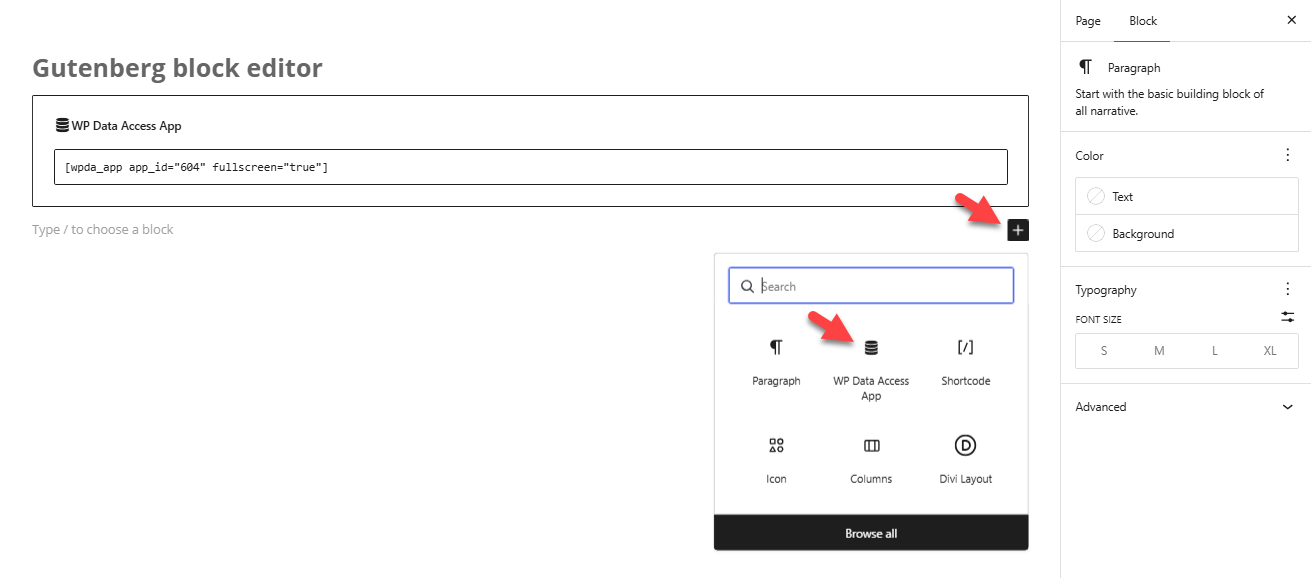
- Open the WordPress Block Editor (Gutenberg) for any post or page.
- Click the + (Block Inserter) button or type / in the content area.
- Search for "WP Data Access App" and select the block to add it to your page.
Configuring Your App
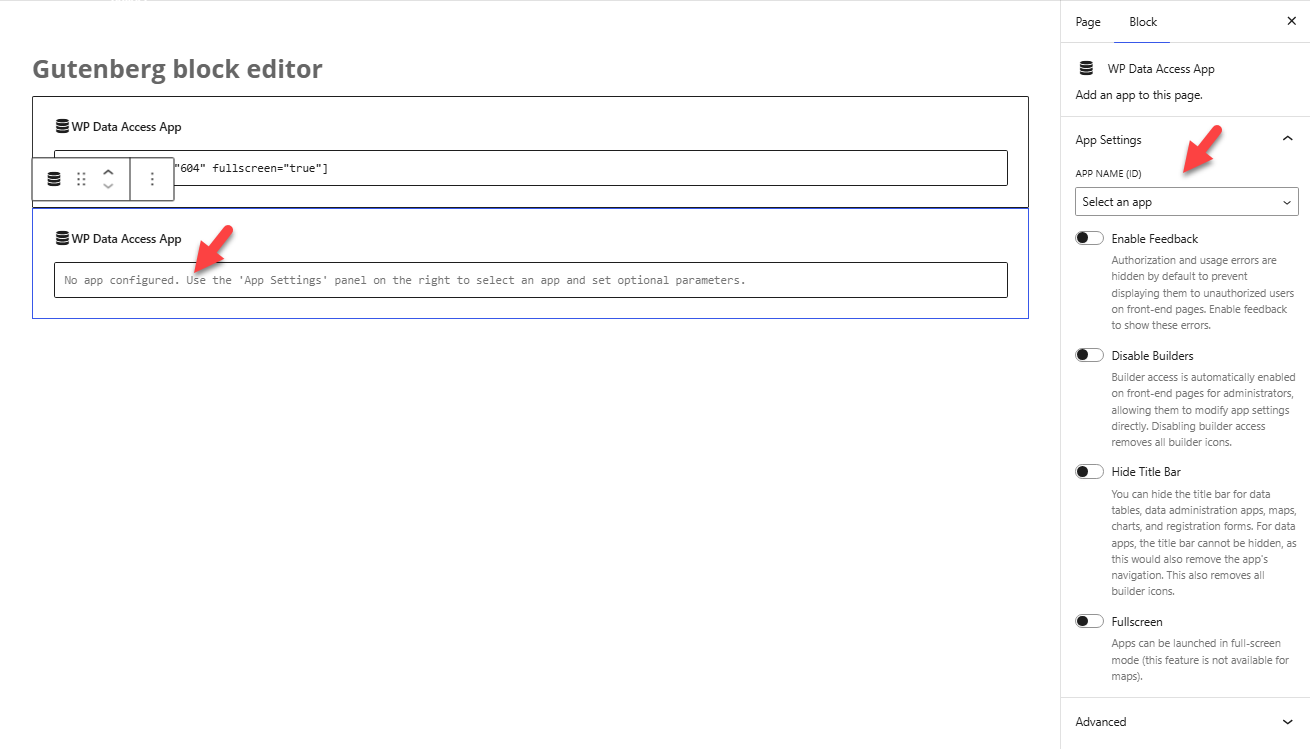
Once the block is added, you'll see the app settings panel in the block toolbar or sidebar.
From here, you can:
- Select your app – Choose from any WP Data Access App you've created.
- Configure display options – Adjust settings like layout, filters, or permissions as needed.
Viewing Your Page
After you save or publish the page, the app will load automatically when visitors view the page. No additional shortcodes or custom code are required.
Troubleshooting Tips
- If the app doesn't appear, make sure the user has the necessary permissions or user roles to view the app. You can adjust these in the App Manager.
- If you've just created a new app, try refreshing the editor or reloading the page to ensure the block recognizes it.
- Changes made to the app in WP Data Access Manager will automatically reflect on the frontend — no need to update the block itself.