
Appearance
Computed Fields
A computed field combines values from table columns with static text or executable code. Column values are accessed using placeholders, which are substituted with their actual values at runtime. You can add placeholders using the magic wand icon or by typing them directly.
📌 Placeholders format: {:columnname}
There are two types of computed fields:
Computed Text Fields
A computed text field returns the content added to the field after substituting any placeholders with their column values. It does not perform calculations or execute code.
✨ Example of a Computed Text Field
This simple example returns plain text with a placeholder for the stock column.
text
Currently {:stock} items in stockComputed Code Fields
A computed code field is a powerful feature that allows you to perform calculations or execute custom JavaScript code. This can be inline code or a call to an external function for a reusable solution. A computed code field must return a valid JavaScript expression.
✨ Example of a Computed Code Field
This simple example returns a JavaScript expression with a placeholder for the price column, including handling for null values.
js
1.21 * ({:price} === null ? 0 : {:price})Adding a Computed Field
Within the Column menu, scroll down and click the + COMPUTED FIELD button.
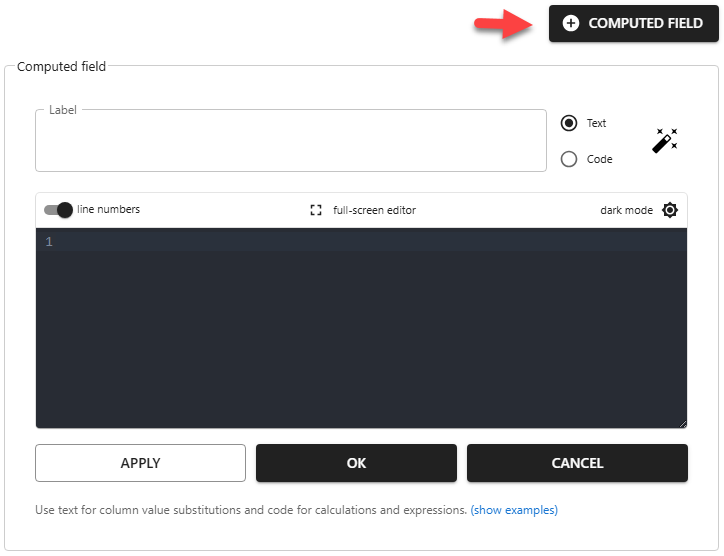
✏️ Label
Computed field labels are shown in the table column header and form fields. While optional, we recommend giving your computed fields clear labels, as they are also used in exports and column selection for exports.
◉ Computed Field Type
- Text - Creates a Computed Text Field
- Code - Creates a Computed Code Field
Using inline HTML is supported in both computed field types, but needs to be enabled for each computed field individually. (read more...)
🪄 Add Placeholder
Clicking the wand icon opens a drop-down list of available column placeholders. You can also add them by typing them directly.

</> Expression Editor
For a Computed Text Field, the expression contains text or HTML. For a Computed Code Field, the expression must be a valid JavaScript expression. Both types may contain placeholders.
#️⃣ Line Numbers
Shows or hides line numbers in the editor.
📌 This is a global user setting that applies to all editors.
⛶ Full-Screen Editor
Enables full-screen editing.
☀︎ Dark Mode
Switches the editor to dark mode (applies to the editor only).
📌 This is a global user setting that applies to all editors.
✔️ APPLY
Applies changes to the current table state without saving them permanently.
✅ OK
Applies changes and saves them permanently.
❌ CANCEL
Reverts any unsaved changes.
Examples
Computed Text Field Examples
✨ Example Using a Placeholder
text
Currently {:stock} items in stock✨ Example Using Multiple Placeholders
text
Full name: {:first_name} {:last_name}💡 The following examples require contain inline HTML which needs to be enabled as explained here.
✨ Example Using an onclick Event
html
<button onclick="alert('Hi {:firstname}')">Say hi!</button>✨ Example Hyperlink
html
<a href={:custmomer_id}>Link</a>✨ Example Using an Image URL
html
<img src="{:img_url}" width="150" height="150" />✨ Example Using an onclick Event Calling a Global Function
html
<button onclick="setStatus('{:product_id}', 'closed')">Close {:product_id}</button>✨ Example Button Opening a URL From a Hyperlink Stored in JSON Format
html
<button
	onclick='event.stopPropagation(); event.preventDefault(); const a = JSON.parse(JSON.stringify({:file})); window.open(a.url, "_blank");'
>Download {:filename}</button>
Computed Code Field Examples
✨ Example Calculation
js
{:salary} * {:com} / 100✨ Example Calculation With Null Value Handling
js
1.21 * ({:price} === null ? 0 : {:price})✨ Example Concatenation
js
"PID-" + Number({:id}).toString().padStart(6, '0')✨ Example Using a Global Function
js
getAge("{:birthdate}")✨ Example of an Anonymous Function
js
(() => {
	const today = new Date();
	const birthDate = new Date("{:birthdate}");
	let age = today.getFullYear() - birthDate.getFullYear();
	const m = today.getMonth() - birthDate.getMonth();
	if (m < 0 || (m === 0 && today.getDate() < birthDate.getDate())) {
		age--;
	}
	return age;
})()
Using Lookup Values in Computed Fields
Besides normal column placeholders, you can also use lookup values in computed fields with special lookup placeholders. These are available in both computed text and code fields.
➺ {:lookup["lookupColumnName"]}
Use this format if your lookup returns a single value.
➺ {:lookup["lookupColumnName"]["valueColumnName"]}
Use this format if your lookup returns multiple values.
IMPORTANT
📌 lookupColumnName = The column on which the lookup is defined.
📌 valueColumnName = A specific column displayed in the lookup.
📌 The Load full lookup on startup option must be enabled to make lookup values available in computed fields.
> Where do I enable the load full lookup on startup feature?
✨ Example Using Lookup Values
js
(() => {
	return "{:lookup['salesRepEmployeeNumber']['firstName']}" !== ""
		? `{:lookup['salesRepEmployeeNumber']['firstName']} {:lookup['salesRepEmployeeNumber']['lastName']} ({:lookup['salesRepEmployeeNumber']['extension']})`
		: ""
})()
Using Global Functions in Computed Fields
This involves two steps: first, create a global function that generates the button, and second, call that function from the computed field.
✨ Create Button in Global Function
js
function addButton() {

	const buttonId = 'custom-btn-' + Date.now()

	setTimeout(() => {

		const button = document.getElementById(buttonId)
		if (button) {
			button.addEventListener('click', () => {
				alert("Hi from alert!")
			})
		}

	}, 0)

	return `<button id="${buttonId}">SHOW ALERT</button>`

}
📌 When adding an element to the DOM via a Computed Field, you must wait for the element to be rendered before attaching an event listener. Using setTimeout with a delay of 0 achieves this. 📌 Global functions can be stored in the Global Hook or added dynamically via an external JavaScript file.
> How can I dynamically load my own JavaScript files?
✨ Call Global Funtion From Computed Code Field
js
addButton()Using Anonymous Functions in Computed Fields
As an alternative to global functions, you can write an anonymous function directly within a computed code field.
✨ Example of an Anonymous Funtion used in a Computed Code Field
This example achieves the same result as the global function example above.
js
(() => {

	const buttonId = 'custom-btn-' + Date.now()

	setTimeout(() => {

		const button = document.getElementById(buttonId)
		if (button) {
			button.addEventListener('click', () => {
				alert("Hi from alert!")
			})
		}

	}, 0)

	return `<button id="${buttonId}">SHOW ALERT</button>`

})()
Inline HTML
The App Builder features improved security with a strong separation between markup and content. If a computed field contains HTML code, you must explicitly enable inline HTML support for it.
> How can I enable inline HTML for computed fields in tables?
✨ Example of a Computed Text Field with Inline HTML
This example creates a button using a placeholder for the product_id column.
html
<button onClick="setStatus('{:product_id}', 'closed')">Close {:product_id}</button>📌 Inline HTML must be enabled for this computed field to render the HTML element correctly.
Aggregations
Do you want your table footer to include totals? Look into Aggregations!