Appearance
Bulk Actions
Bulk actions allow users to perform tasks on multiple rows simultaneously.

User Experience
👤 Exported Columns

By default, all available columns are exported. Users can customize which columns are included. Clicking the columns icon button opens a popup where users can select or deselect specific columns. The export order matches the column order shown in the selection box.
📌 This selection is stored locally per user and is automatically reused for the next export.
👤 Export To PDF
The PDF export option provides additional layout settings that can be configured before exporting.
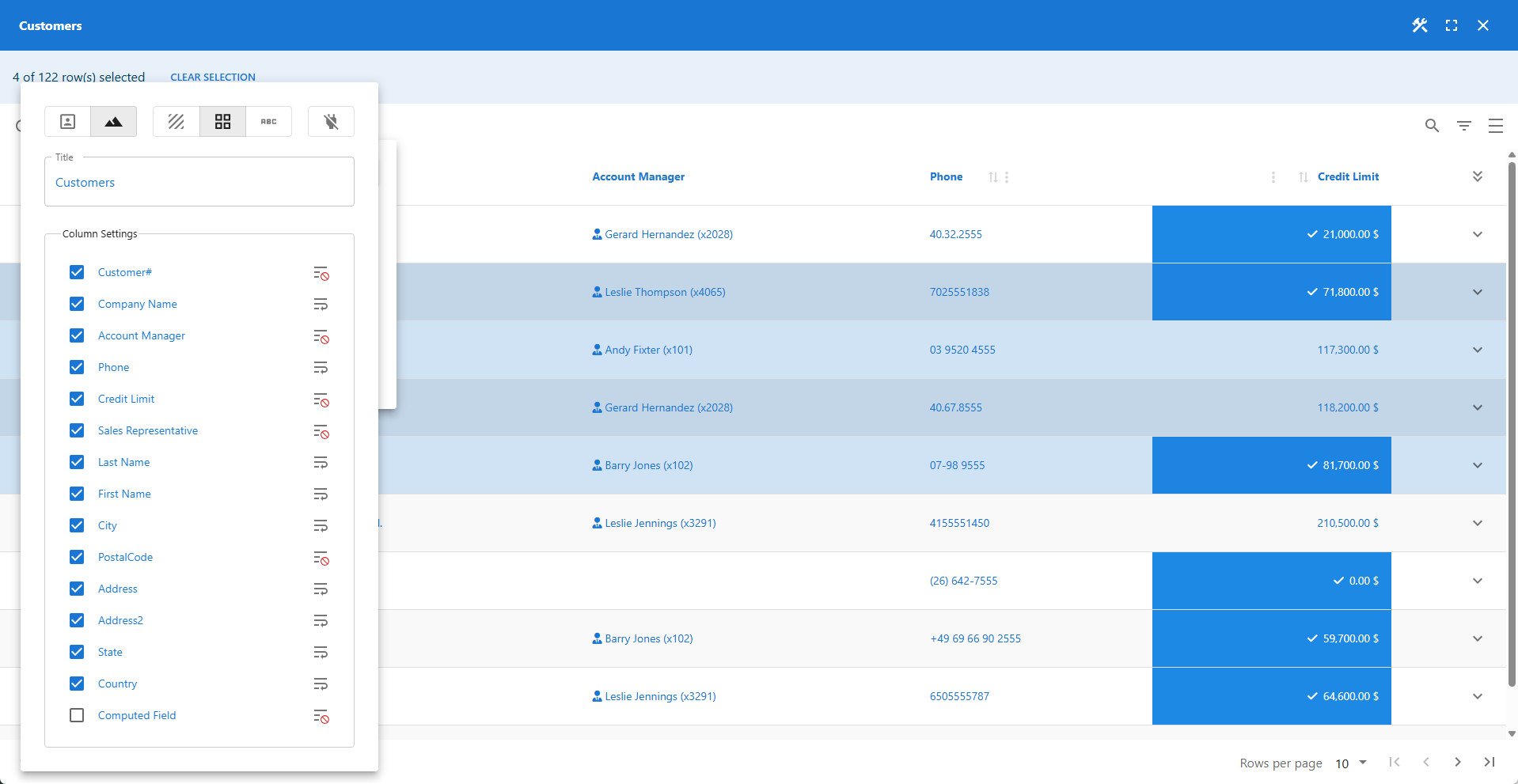
The icons at the top are explained from left to right:
- Print Portrait
- Print Landscape
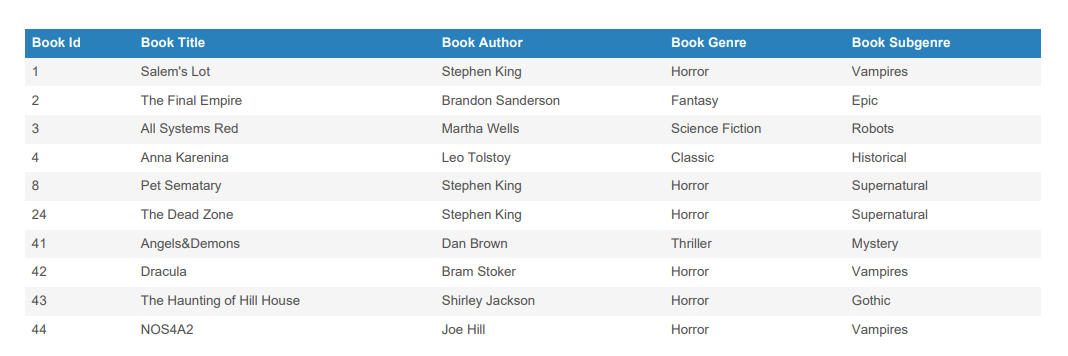
- Striped Table Format
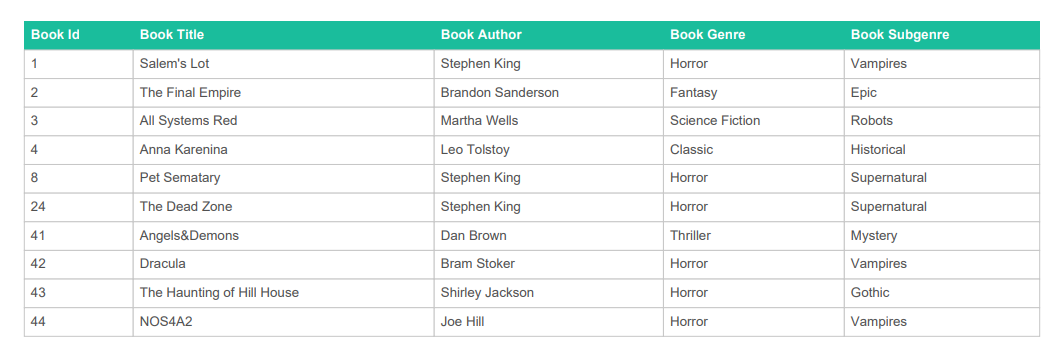
- Grid Table Format
- Text-Only Format
- Show | Hide the Powered by WP Data Access credit on the output.
The title field allows users to set a custom title for the PDF export. For each data field, users can define whether the text should be wrapped.
📌 This selection is stored locally per user and is automatically reused for the next export.
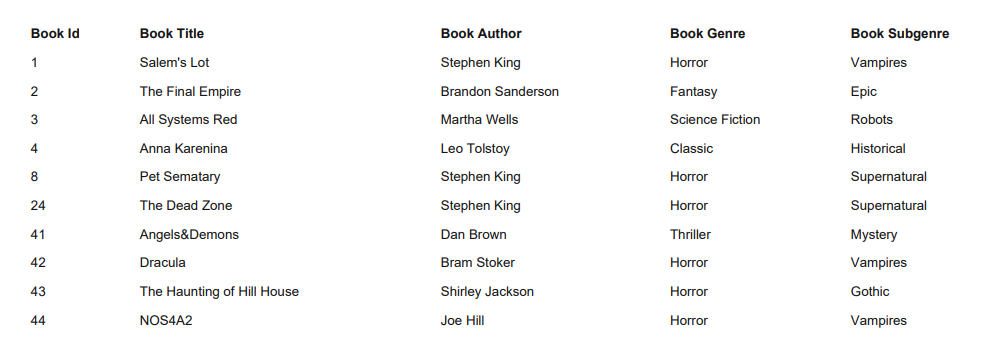
✨ PDF Formats
⚙️ Bulk Actions Settings
Bulk Actions are configured in the Bulk Actions panel within the Table Builder's Table menu. To enable this feature, you must select at least one bulk action. Once enabled, a row selection checkbox column is added to the table, and a bulk actions button appears in the toolbar.

- Export to PDF (requires a premium license)
- Export to CSV
- Export to JSON
- Export to Excel (requires a premium license)
- Export to XML
- Export to SQL (only available in the Data Explorer)
- Delete (only available for Data Administration apps and the Data Explorer)
The Delete action is disabled by default for apps and must be enabled for each table individually. It is enabled by default in the Data Explorer.